Preferred & Custom Currencies
Many large enterprises choose to create a custom currency or usage credit, building their pricing models around these units rather than traditional currencies. This helps abstract usage from dollar values and simplifies billing for a global customer base.
To create a new custom currency, go to Pricing → Custom Currency from the main navigation menu.
Assigning a Preferred Currency to Customers
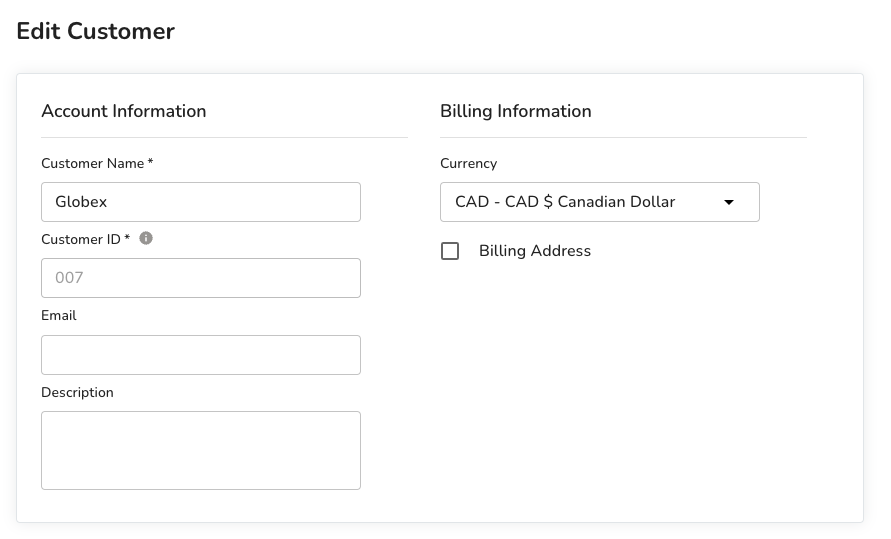
Each customer in Amberflo is assigned a default currency. While the backend system always calculates charges in USD, these amounts can be converted into the customer’s preferred currency using a predefined conversion rate.
You can view and update a customer’s currency from the Customer view. If a customer should be billed in a currency other than USD, simply select the appropriate default currency. Amberflo will then convert the invoice total using the rates defined in your conversion table.
Creating a Custom Currency
To set up a custom currency:
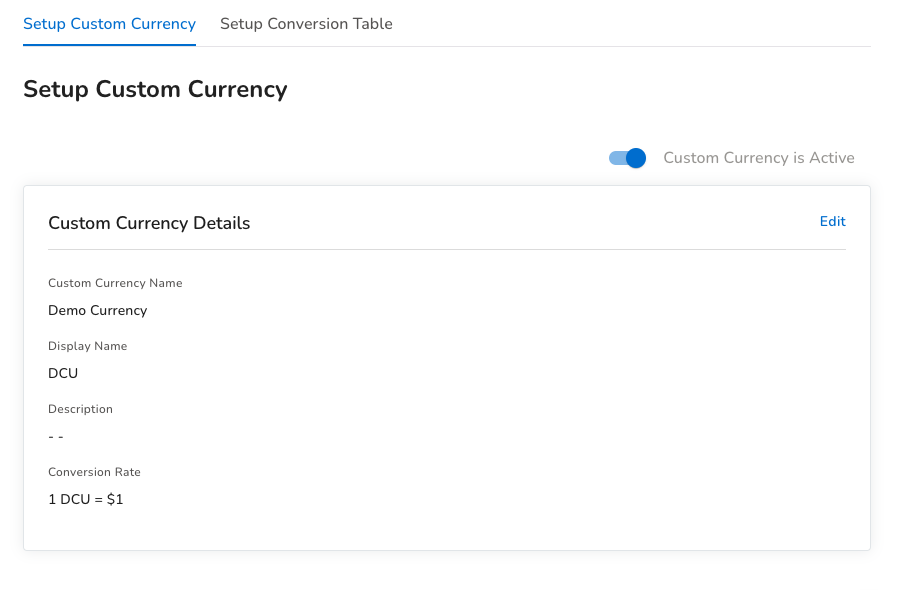
- Navigate to Pricing → Custom Currency.
- Provide a name and a display abbreviation (e.g., "Demo Currency" and "DCU").
- Define the conversion rate to USD, such as 1 DCU = $1.
- Activate the custom currency using the toggle provided. This ensures all invoices are calculated using the custom currency.
Creating a Conversion Table
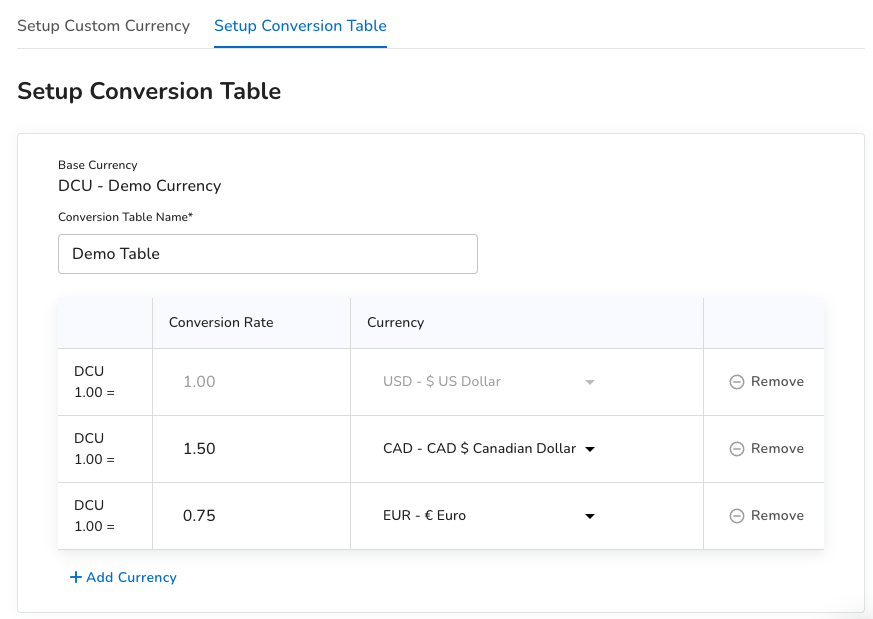
In the Setup Conversion Table view, click Add Conversion Table to begin defining exchange rates.
This table specifies how your custom currency (e.g., DCU) converts to other global currencies. Make sure you define conversion rates for all non-USD currencies used by your customers. If no conversion rate is available for a customer’s default currency, their invoices will be displayed in USD by default.